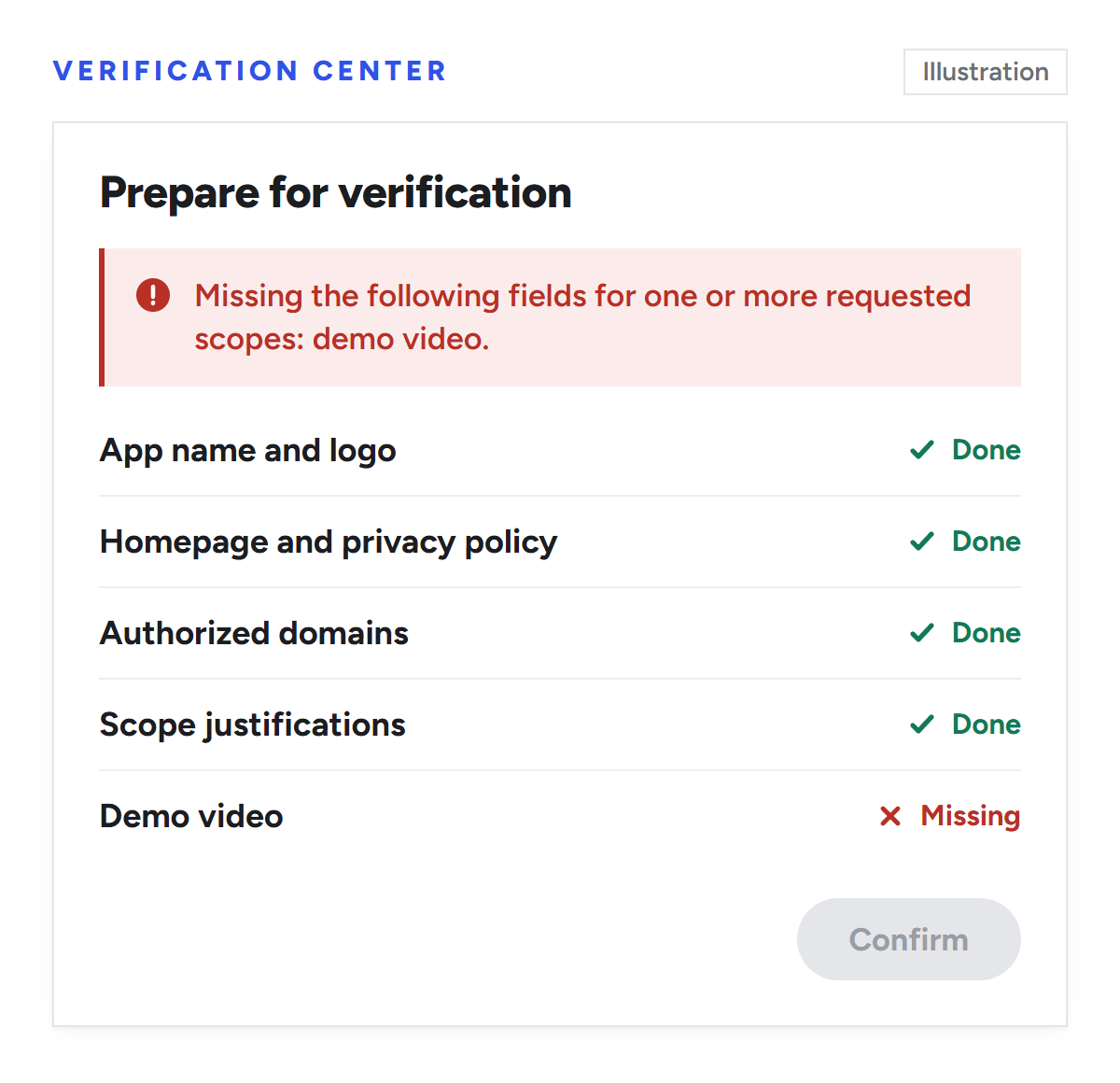
We ran into this while getting Projark, the marketing project and reporting tool our team is building, ready for Google's review. Everything on the Verification Center's "Prepare for verification" page looked filled in except one red banner: "Missing the following fields for one or more requested scopes: demo video." The Confirm button stayed grey.
The video turned out to be the easy part. When we checked the rest of the submission against Google's requirements, we found three problems that would likely have sent it straight back: scopes we no longer used, an authorized domain we could never verify, and a Google Docs scope broader than the feature needed.
Below is the order we'd work in if we were starting again. It's written for SaaS teams whose products pull Google data, especially marketing tools built on Google Analytics 4, Search Console, Google Ads or Google Docs, but the steps apply to any app going through Google's OAuth review.
Illustration: every field filled in except the demo video, so the Confirm button stays grey.
Does your app need Google OAuth verification?
Google sorts every OAuth scope into one of three tiers: non-sensitive, sensitive and restricted. The tier decides how much review you're in for, and Google's scope management guide is clear that any sensitive or restricted scope means going through verification.
Brand verification is a separate, lighter check on who you are: homepage, privacy policy, domain ownership, name and logo. Google's brand verification guide says you need it whenever your app is open to external users and shows a name or logo on the consent screen. Here's how the reviews stack up, based on Google's verification requirements:
Review
What triggers it
What Google checks
Google's estimate
Brand verification
Showing your app name or logo to external users
Homepage, privacy policy, domain ownership and branding
A few minutes if the automated check passes, 2 to 3 business days in manual review
Sensitive scope verification
Scopes such as analytics.readonly, adwords or documents.readonly
Everything above, plus scope justifications, a demo video and Limited Use compliance
10 business days
Restricted scope verification
Scopes such as drive, drive.readonly or Gmail message access
Everything above, plus an annual CASA security assessment when your servers store or transmit restricted data
6 weeks
The brand timing comes from Google's brand verification guide. The scope estimates come from its verification FAQ, which is upfront that they aren't guaranteed and depend on how quickly you respond. Google's sensitive scope page quotes a shorter 3 to 5 business days. We'd plan around the longer number.
Personal-use apps with fewer than 100 users, who can click through the unverified app warning
Development, testing and staging apps, as long as they live in their own projects, separate from production
Apps that only access their own data through a service account
Internal apps used only by people in your Google Workspace or Cloud Identity organization
What happens if you don't verify
An unverified app that requests sensitive or restricted scopes shows users a warning before the consent screen, and it's limited to 100 new users. Google's unverified apps page explains the cap, and the FAQ adds the part that stings: it applies over the project's whole lifetime and can't be reset. Once it's used up, users start seeing "Sign in with Google temporarily disabled."
There's a quieter failure, too. If your app is set up for external users and its publishing status is still Testing, Google's OAuth documentation says refresh tokens expire after 7 days, unless you only request basic name, email and profile scopes. If a customer's GA4 or Search Console connection drops every week, check this first.
Check whether a service account does the job
If your product only reads accounts your team already has access to, user OAuth might be the wrong tool. Google's Google Ads API docs recommend the service account workflow for managing accounts you can already access, and the multi-user OAuth flow for apps that manage accounts on other people's behalf. Search Console and GA4 work in a similar way: a client adds your service account's email as a user on their property.
No consent screen means no OAuth scope review for that integration, although Google Ads still needs an approved developer token either way. The cost is friction, because every customer has to add the service account by hand. That's fine for an agency working on its own clients' accounts and awkward for self-serve SaaS.
Step 1: Cut your scopes down first
Google's minimum scope rule is easy to state: request the narrowest scopes your app needs today, not ones a future feature might use. If a reviewer decides something narrower would work, the verification requirements say they'll send you back to request it.
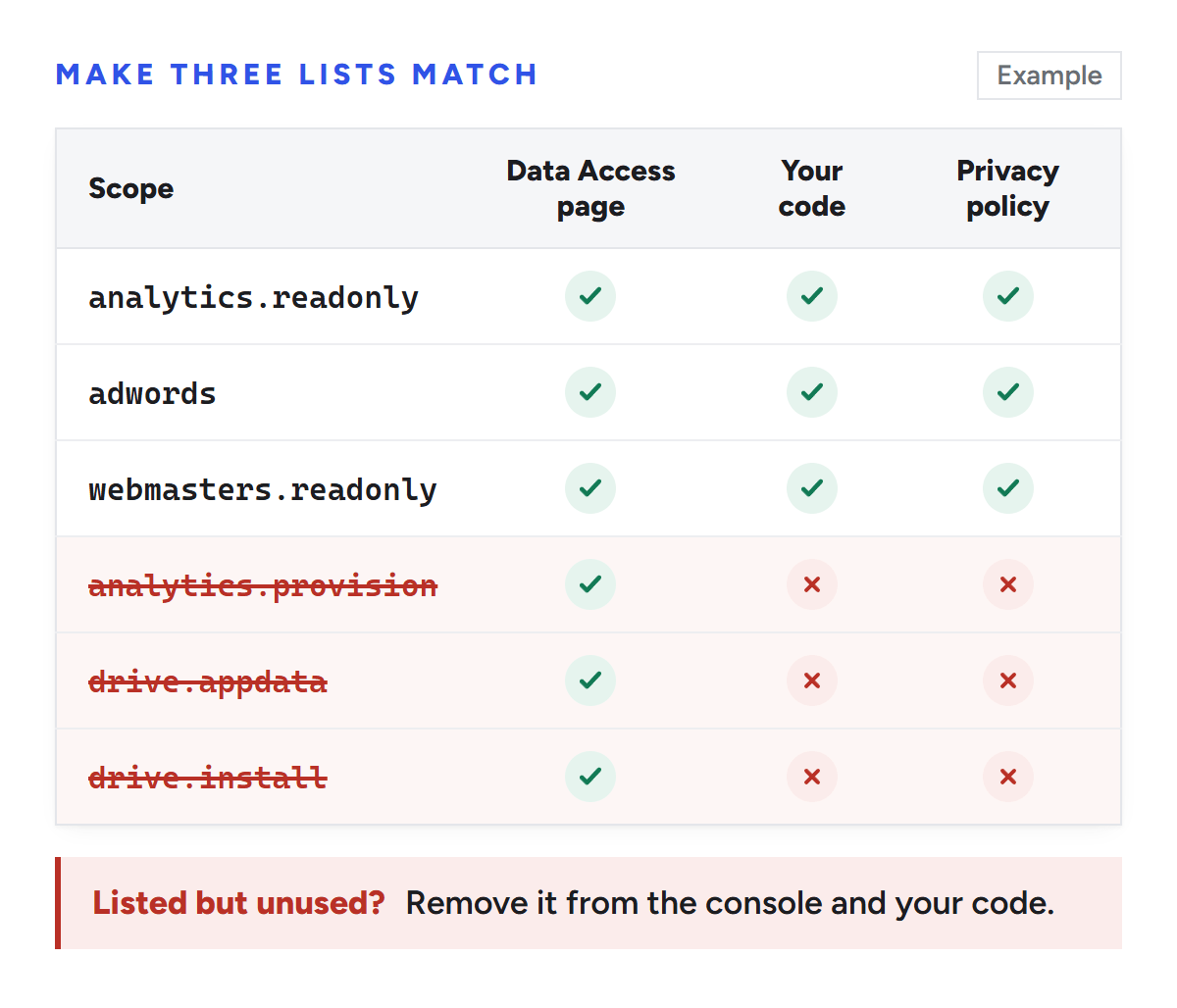
Start by making three lists match:
The scopes on the Data Access page of the Google Auth Platform
The scopes your code actually requests
The scopes your privacy policy names and explains
When we lined ours up, the console still listed scopes that no live feature used, like analytics.provision, drive.appdata and drive.install. Every extra scope is one more thing a reviewer can ask about.
Every scope on the Data Access page should also be in your code and your privacy policy. If it's listed but unused, remove it.
Remove what you don't need from the console and from your code. If the code keeps requesting a scope that isn't approved, users see the unverified app screen even after you pass. Google's unverified apps page calls this out directly.
Use per-file access when the user picks the file
One Projark feature reads a single Google Doc that a user links to a task. We'd requested documents.readonly, which is sensitive and lets an app see every Doc the user has. Google's Docs API scope table marks drive.file as the recommended scope instead: it's non-sensitive and only covers files the user opens with your app, usually through the Google Picker.
Switching changes two things. The feature asks for less, and that scope drops out of sensitive review, so there's no justification or demo footage to produce for it. Google's Drive scope guide lists simpler verification among its reasons to use drive.file. If your feature only ever touches files the user chooses, this is usually the cheapest fix in the whole process.
Ask for each scope when it's needed
Google's OAuth overview calls incremental authorization a best practice: request a scope at the moment a user needs it, not all at once at sign-up. For a marketing tool, that means asking for Search Console access when someone clicks Connect Search Console. Users understand the request better, and each connect flow becomes a clean scene in your demo video.
Keep test clients out of the production project
Google recommends separate projects for development, testing and production, and its brand verification guide suggests deleting OAuth clients that aren't ready for production before you submit. Fewer clients also means a shorter video, because every OAuth client in the project has to appear in it.
Step 2: Verify every authorized domain
Every domain on your Authorized domains list has to be verified in Google Search Console by an account with Owner access to the Cloud project. Some of Google's pages also accept Editor, but its domain verification guide is firm on Owner, and it asks for a Domain property verified through a DNS TXT record rather than a URL-prefix property.
If you work in SEO, this part will feel familiar. It's the same Domain property setup we do at the start of every technical SEO engagement. The catch is which account did the verifying. If your domain was verified years ago from a marketing login that isn't an Owner on the Cloud project, Google won't count it, and the reviewer will come back with "A project owner has not yet verified one or more of your authorized domains."
Two limits are worth knowing before you submit. You can request verification for no more than 10 authorized domains, and removing a domain means first deleting every redirect URI and JavaScript origin that uses it.
The hosted auth domain trap
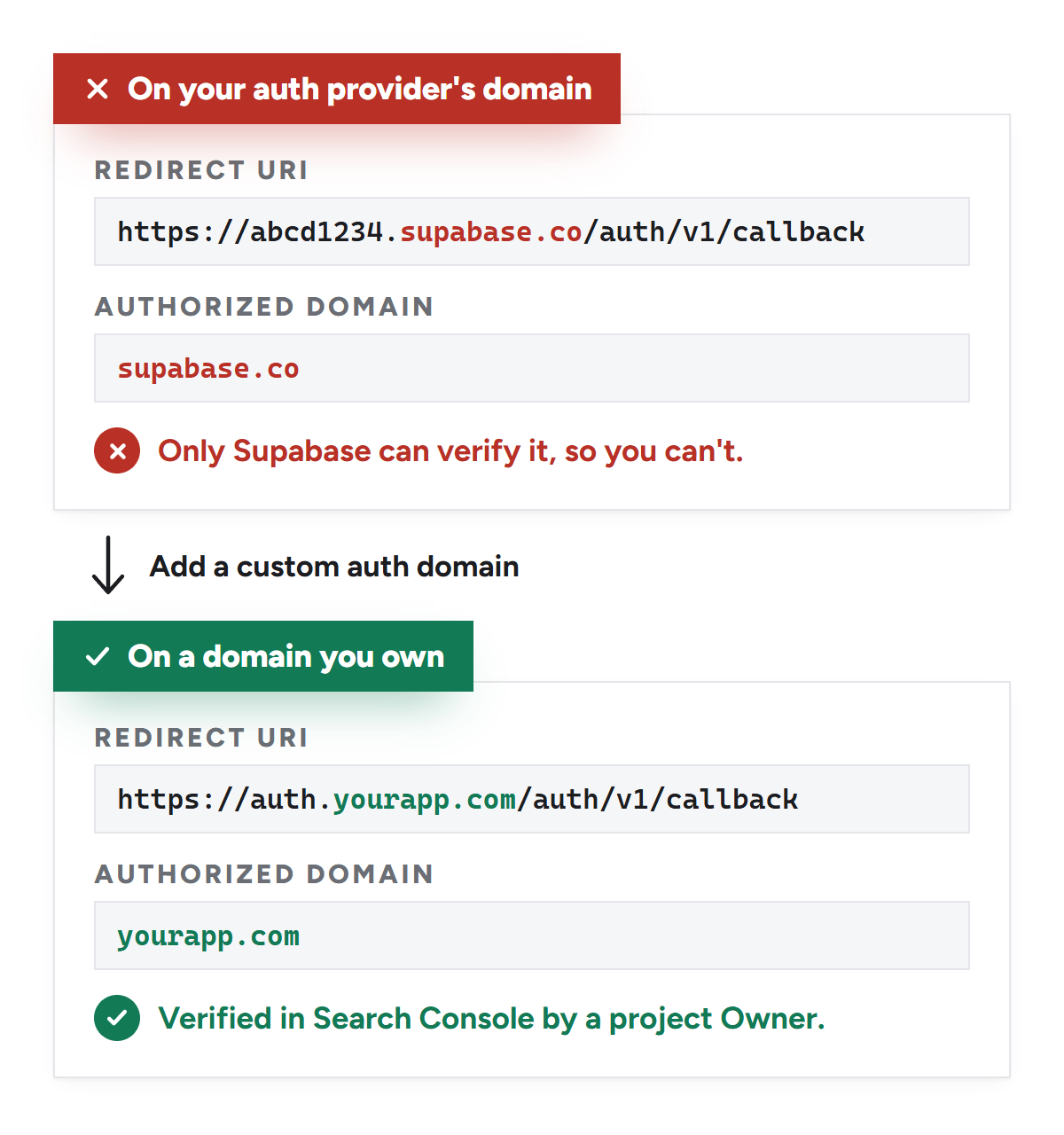
This one took us the most thought. Projark signs users in through Supabase Auth, so Google's redirect URI pointed at our project's supabase.co subdomain, and that subdomain sat on the authorized domains list. Only Supabase can verify supabase.co, so as configured, the requirement can't be met.
It shows up on the sign-in screen as well. Until brand verification passes, Google's account chooser names the redirect host, which means users see a random string ending in supabase.co instead of your product name.
The fix is a custom domain for the auth server. Supabase sells custom domains as a paid add-on for projects on a paid plan. You point a subdomain such as auth.yourapp.com at the project, add its /auth/v1/callback URL to your Google OAuth client alongside the old one, activate the domain, and then remove the supabase.co entries. Supabase's own Google sign-in guide strongly recommends it. Any hosted auth provider whose callback lives on its domain creates the same problem, and the fix has the same shape.
A redirect URI on your auth provider's domain can't pass domain verification. A custom auth domain fixes it.
Some teams have gotten through by explaining to the reviewer that the domain belongs to their auth provider. Others haven't, and we wouldn't plan a launch around it. Do the domain move before you submit, too, since adding redirect URIs after approval puts you back into review.
Step 3: Tighten your homepage and privacy policy
Reviewers read your public pages before they watch anything. Google's verification requirements say the homepage has to sit on a verified domain you own, describe what the app does (a bare login page doesn't count) and link to the same privacy policy URL you entered in your branding settings.
The privacy policy should live on the same domain as your homepage and explain how your app accesses, uses, stores and shares Google user data. Four things make it much easier to approve:
Name each Google scope and the feature it powers. Google's FAQ warns that broad wording gets read as covering your sensitive scope data, and suggests describing that data separately from everything else you collect.
Include a Limited Use statement. The same FAQ offers sample wording: a sentence confirming that your app's use of information from Google APIs follows the Google API Services User Data Policy, including its Limited Use requirements.
Be specific about AI. If Google data ever reaches a language model, say exactly how. For Workspace data such as Docs, the Google Workspace user data policy bans using it to create, train or improve AI models beyond the individual user's own personalized model, and Google's verification FAQ says Google user data in general can't be used to train or improve foundation models. If your model provider's API terms rule out training on your inputs, say so plainly, because a vague line about not controlling your vendors invites a follow-up question.
Add notice inside the app. For Workspace data such as Docs and Drive files, the same policy wants an in-app disclosure of what you'll access and why, shown right before the consent request, not only in the privacy policy. A one-screen explainer before the Connect button sends users to Google covers it, and it belongs in your video.
The requirements cover branding too. Any button that starts an action on a Google product, like Connect Google Ads, has to follow Google's brand guidelines, and sign-in buttons have their own Sign in with Google rules.
Step 4: Write scope justifications a reviewer can approve
Each sensitive scope needs its own justification. Google wants to know what data you'll use, which feature uses it and why a narrower scope wouldn't work. Spend the most time on that last part, because Google's requirements warn that a thin justification can get the request rejected.
Here's the structure we'd use:
The feature in user terms: what someone clicks and what they see
The data the scope returns and where it appears in your product
Why nothing narrower works
What you never do with that data
Here's roughly how we framed the two marketing scopes in ours:
analytics.readonly: reads sessions, conversions and landing-page performance for the GA4 property the user selects, to fill that project's reporting dashboard. It's already the read-only Analytics scope, and the app never creates or changes properties.
adwords: reads campaign and conversion results for the Google Ads account the user selects, shown beside organic performance. Google's Ads API documentation lists a single scope for the API, so there's no read-only version to fall back on. The justification states that the app only runs reporting queries and never creates, edits, pauses or deletes anything.
If you call the Google Ads API, you also need a developer token with the right access level, which Google approves separately from OAuth.
Step 5: Record a demo video that covers every requirement
The full OAuth grant flow for every consent flow in your app, across every OAuth client in the project
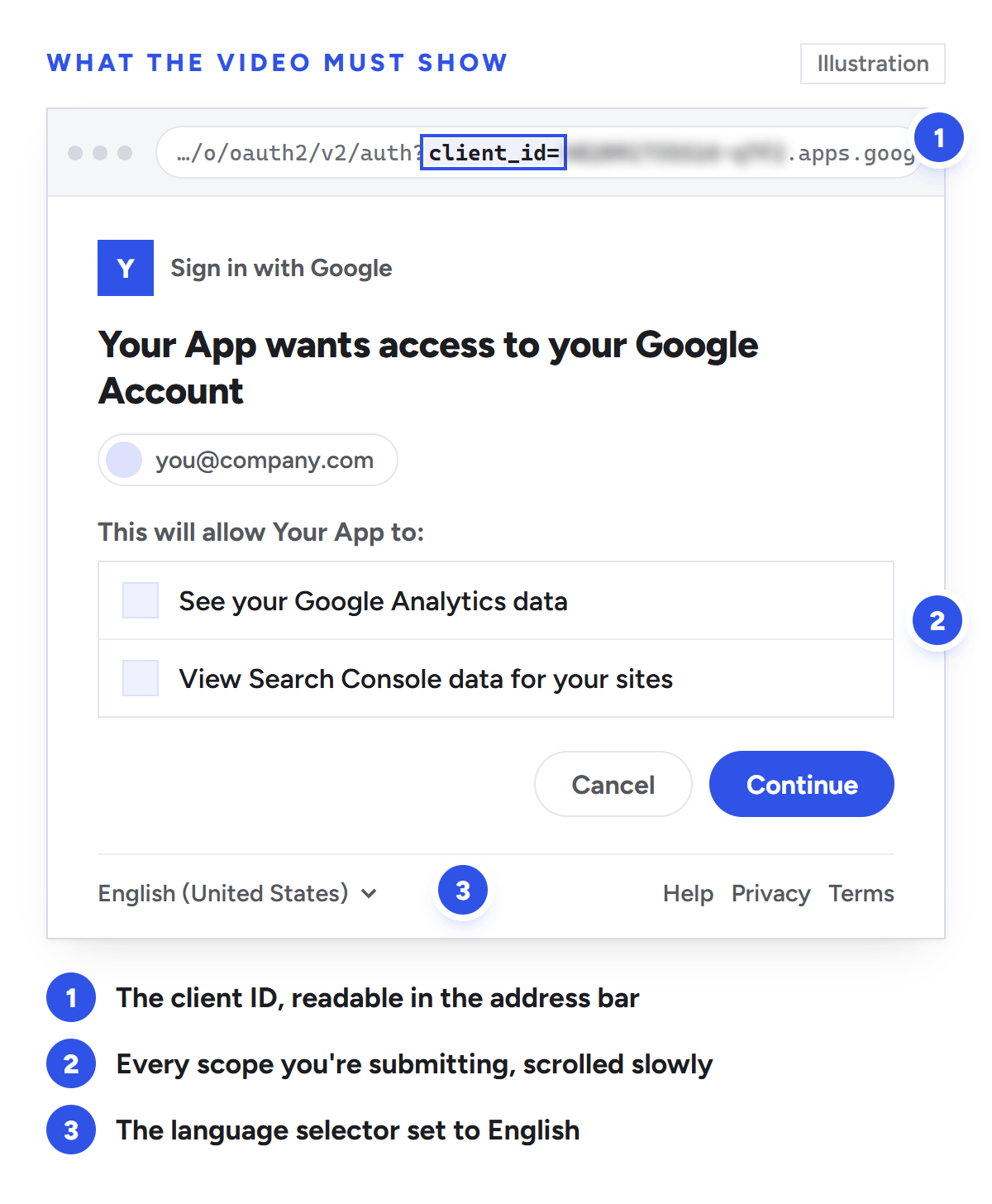
The complete consent screen, listing exactly the scopes you're submitting, with the language selector at the bottom left set to English
Your app's name, branding and OAuth client ID
Each requested scope doing its job inside the product
It goes on YouTube, set to unlisted. The shot list we put together:
Open on your homepage for a few seconds, so the app name and branding are clearly on screen.
Sign in with Google and pause on the consent screen.
For each integration, click Connect, show your in-app notice, then stop on Google's consent screen. Zoom into the address bar until client_id= is readable, and scroll slowly through the listed scopes.
Show the data each scope powers: GA4 metrics on the dashboard, Ads results next to organic, a linked Doc feeding a brief.
End by disconnecting one integration. Google doesn't ask for it, but it shows users stay in control.
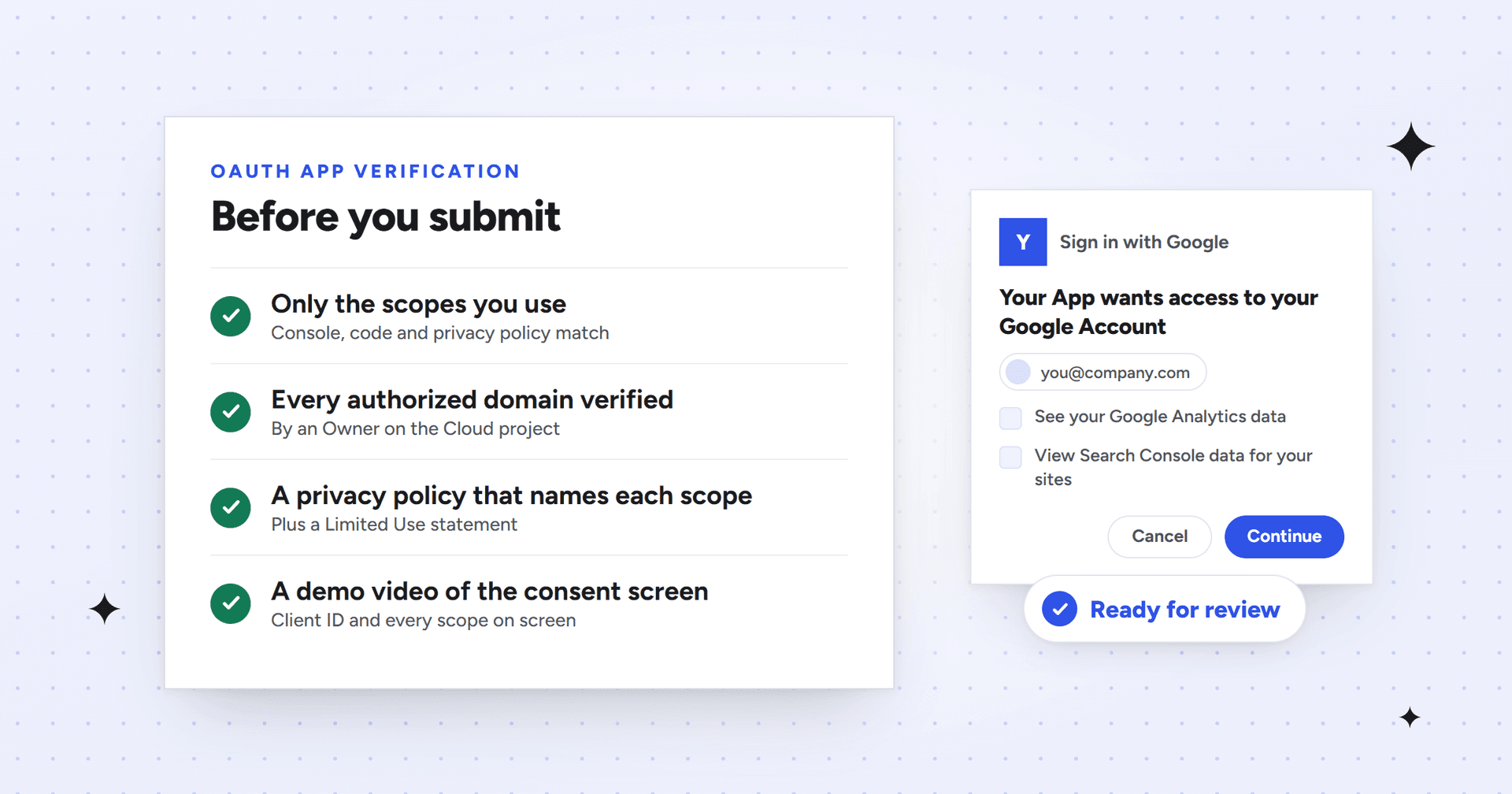
Illustration: the three things reviewers look for on the consent screen in your demo video.
Add captions or a voice-over naming each scope as it appears. Google says narration helps reviewers, and it saves them guessing which screen goes with which permission.
Record last. The consent screen in the video has to match the scopes you're submitting, so changing a scope afterwards means recording again. The same goes for moving your auth domain, since the address bar will show the old one.
Step 6: Submit, then watch your inbox
Check the publishing status. Apps in Testing aren't eligible, according to Google's guide to approvals and cancellations, so move the production project to In production first.
Use the Additional info box. The console caps it at 1,000 characters. Reviewers have to get past your login, so give them a dedicated demo account or point them to a free signup, and explain anything unusual, like an auth domain you're partway through moving.
Keep project contacts current. Google sends questions to the contacts on the project. If a reviewer asks for a change and it isn't resolved within 90 days, the request is closed automatically.
Don't ship new sensitive scopes early. The FAQ is clear that if you start requesting a scope before it's approved, users get the unverified app screen and the 100-user cap applies.
Some changes after approval send you back for another review: adding sensitive or restricted scopes, adding redirect URIs or JavaScript origins, or renaming your app, per Google's unverified apps guidance. Apps whose servers store or transmit restricted-scope data also repeat the security assessment every year.
Quick diagnosis: what Google flags and what to do
What you see
Why it happened
What to do
"Missing the following fields for one or more requested scopes: demo video"
A sensitive or restricted scope has no demo video attached
Record the video and add the unlisted YouTube link
Reviewer says a project owner hasn't verified your domains
A domain isn't verified, or the wrong account or property type was used
Verify a Domain property in Search Console from an Owner account
Rejection over the 10-domain limit
Too many authorized domains on the project
Delete unused redirect URIs and origins, then the domains
Sign-in says "continue to" a supabase.co address
Your redirect URI sits on your auth provider's domain
Move auth to a custom domain you own
Reviewer asks for a narrower scope
Your feature works with less access
Switch scopes, or explain exactly why the narrower one fails
Unverified app screen after approval
Your code requests scopes that weren't approved
Match your code to the approved scope list
"Sign in with Google temporarily disabled"
The 100-user cap for unverified apps ran out
Finish verification; the cap can't be reset
Connections drop every 7 days
The project is still in Testing
Move to production and get verified
Frequently asked questions
How long does Google OAuth verification take?
Brand verification can clear in a few minutes when Google's automated check passes, and manual review usually takes 2 to 3 business days. Google's FAQ estimates 10 business days for sensitive scopes and 6 weeks for restricted scopes, and notes that slow responses push those out. Another Google page quotes 3 to 5 business days for sensitive scopes, so plan for the longer figure.
Do I need verification if I only use Sign in with Google?
Basic sign-in scopes (openid, email and profile) are non-sensitive, so there's no scope review. You still need brand verification if your app is open to external users and shows a name or logo on the consent screen.
What happens if my app isn't verified?
If your app requests sensitive or restricted scopes and isn't verified, users see an unverified app warning before the consent screen, and the project can only add 100 new users over its lifetime. Once that's used up, Google disables sign-in for new users.
Does Google charge for OAuth verification?
No. Google doesn't charge for verification or for security assessments. Apps whose servers store or transmit restricted-scope data need a yearly assessment from an independent CASA assessor, and any fee is agreed between you and that assessor.
Can I add new scopes after my app is verified?
Yes, but new sensitive or restricted scopes mean submitting for verification again, with a demo video that shows the updated consent screen. Don't request the new scope in production until it's approved, or users will hit the unverified app screen.
Does the Search Console API scope need verification?
In our project, Search Console's read-only scope (webmasters.readonly) was classified as non-sensitive, so it didn't need a justification or video. Classifications can change, so check how the Data Access page labels it in your own project before you submit.
The bottom line
Most of what slows verification down can be fixed before you submit. Cut scopes until each one maps to a live feature, get every authorized domain onto a domain you control, explain Google data plainly in your privacy policy and record the video last. That covers everything we found while preparing our own submission.
Mission SEO helps B2B SaaS companies grow across Google search, paid search and AI answer engines. If you're launching integrations with GA4, Search Console or Google Ads and want a second set of eyes on the search side of the launch, get in touch with our team.
We’re a B2B SEO and AEO agency. Book a free 30-minute call with a senior consultant: we look at your site before we talk, so you leave knowing what to fix first.

 best project management software