The official WordPress MCP plugin is MCP Adapter, published by WordPress.org. To connect Claude to your site, install it on WordPress 6.9 or later, create an application password for a dedicated user, then add your site's MCP address to Claude Code or Claude Desktop. The plugin's own guide puts this at about ten minutes. Most tutorials don't mention that on WordPress 7.1, MCP Adapter on its own can't read or edit your posts. What Claude can do depends on abilities that WordPress and your other plugins register.
We set this up in October 2026 on a B2B SaaS client's WordPress site, hosted on WP Engine, so we could make site-wide internal linking changes from Claude. It took us much longer than ten minutes, mostly because of two avoidable mistakes. Below is the order we'd follow now, with those mistakes flagged where they happen.
Which way to connect Claude to WordPress
MCP (Model Context Protocol) is the standard Claude uses to work with outside tools. There are several ways to give it your site, and the right one depends on where the site lives and which Claude app you use.
Your setup
Route
What you need
Can Claude edit posts?
WordPress.com site on a paid plan, or a free site in its first 30 days
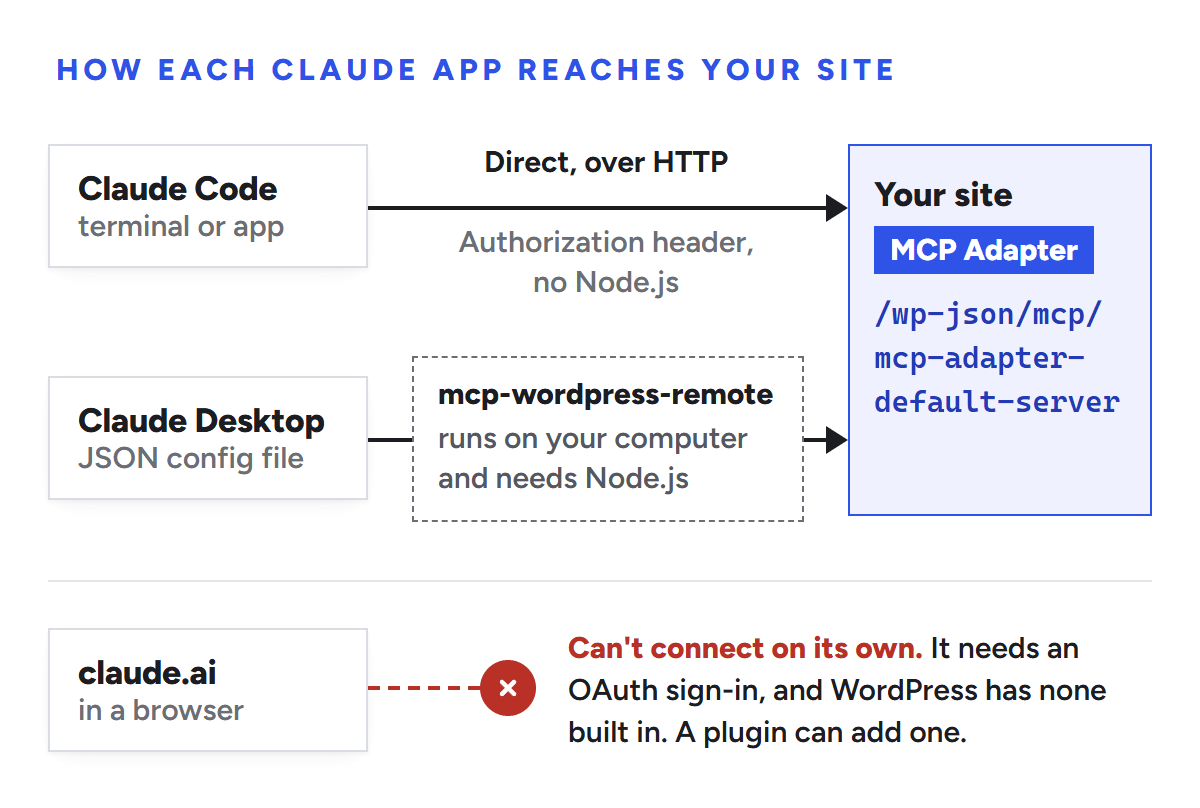
Claude in a web browser is the gap. claude.ai adds custom connectors through an OAuth sign-in, and MCP Adapter's guide says WordPress doesn't include an OAuth server and the plugin doesn't add one, so the browser version can't connect to MCP Adapter on its own today. Plugins that add an OAuth sign-in close that gap; Enable Abilities for MCP, mentioned below, includes one built for claude.ai. The rest of this guide covers the self-hosted routes, where most business sites sit.
Claude Code and Claude Desktop reach the same MCP address. The web app needs a plugin that adds an OAuth sign-in.
What you need before you start
WordPress 6.9 or later and PHP 7.4 or later. MCP Adapter is tested up to WordPress 7.1.3.
An administrator login, to install the plugin and create the user.
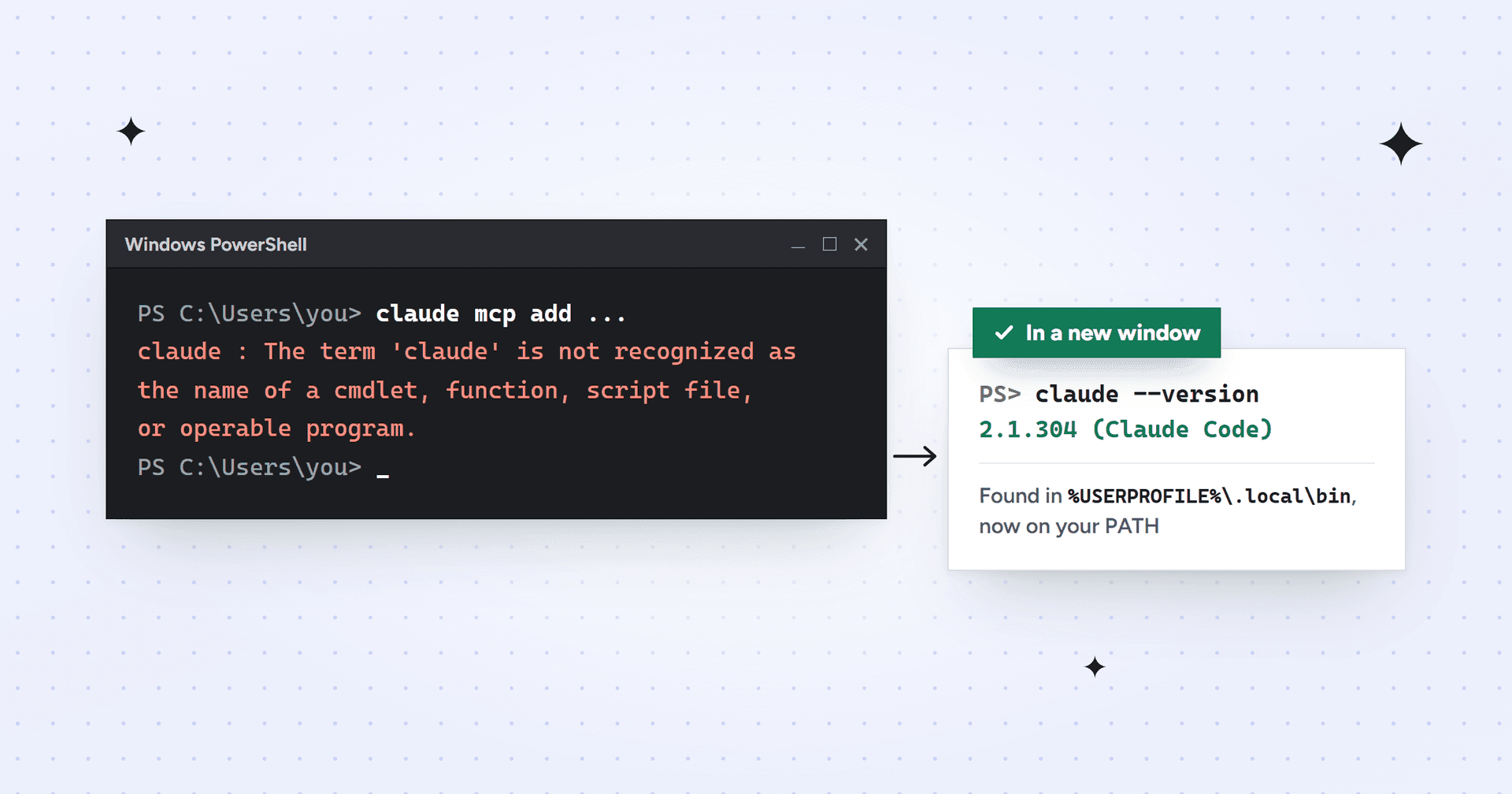
Claude Code or Claude Desktop on your computer. Claude Code needs its terminal command installed; if typing claude gives an error, see how to fix "'claude' is not recognized".
Node.js 22 or later, but only for the Claude Desktop route or the optional helper in Claude Code.
A recent backup, if you plan to let Claude change anything.
How to set up the WordPress MCP plugin
Install and activate MCP Adapter
In wp-admin, go to Plugins > Add New Plugin, search for MCP Adapter, install the one by WordPress.org and activate it. It joined the plugin directory on October 2, 2026, so tutorials that send you to GitHub for a zip file are out of date. Use version 0.7.1 or later, which fixed a security issue in how sessions are stored.
Check it by opening your site's MCP address in a browser, with your own domain in place of example.com:
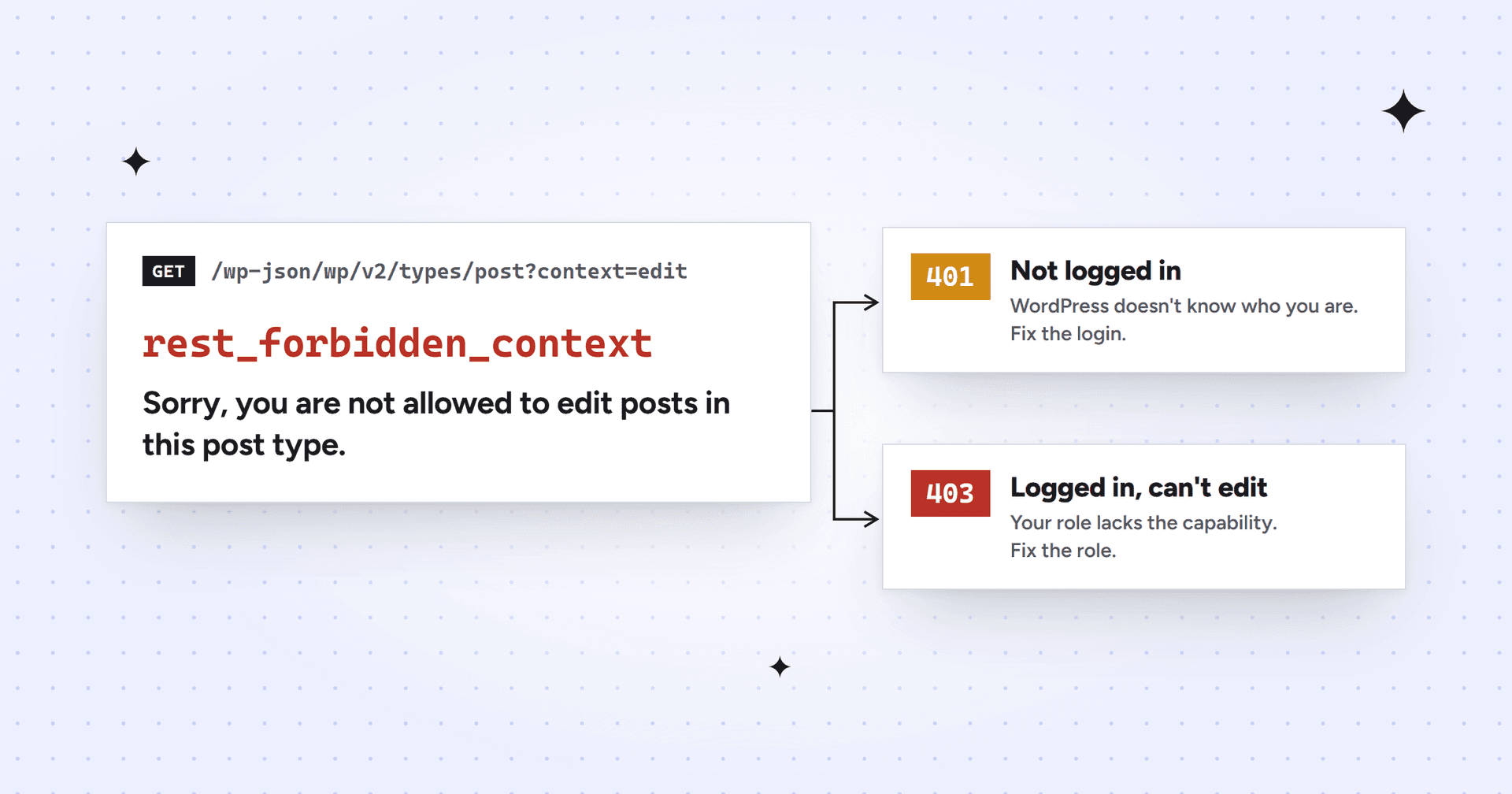
"Sorry, you are not allowed to do that." with status 401 means the plugin works. The error is expected, because the browser hasn't logged in to the MCP server.
rest_no_route with status 404 means the plugin isn't active, or the site uses plain permalinks. With plain permalinks, use https://example.com/?rest_route=/mcp/mcp-adapter-default-server wherever this guide shows the /wp-json/ address (per the plugin's guide).
We checked our client's site the same way. The 401 told us the plugin was live before we'd touched Claude.
Create a dedicated Editor account
Go to Users > Add New User and create an account just for Claude, such as claude-mcp, with the Editor role. Every action Claude takes runs as this user, so its role sets the limits.
The role matters more than it looks. Any logged-in user can connect, even a Subscriber, so a wrong role doesn't stop the connection; it just leaves Claude unable to do much. Our client's account had been created as a Subscriber, and we only noticed when the first successful login reported the role.
What each role can do, from WordPress's roles documentation
Editor suits content work (source). Two of WordPress's three built-in abilities need an administrator, but neither one touches content.
Create an application password
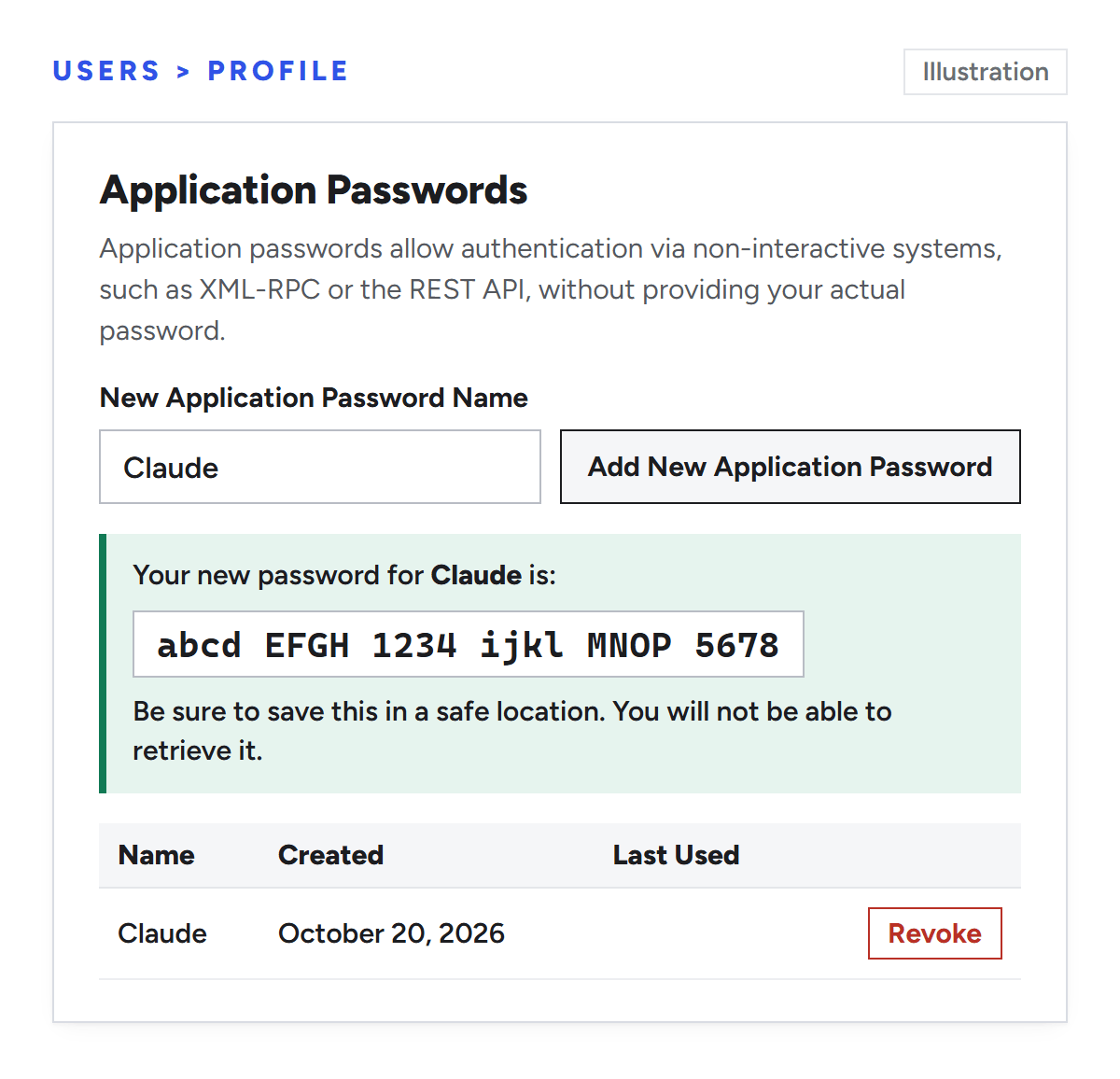
Edit the new user (or log in as it), scroll to Application Passwords, type a name such as Claude and click Add New Application Password. Copy the password straight away; WordPress only shows it once.
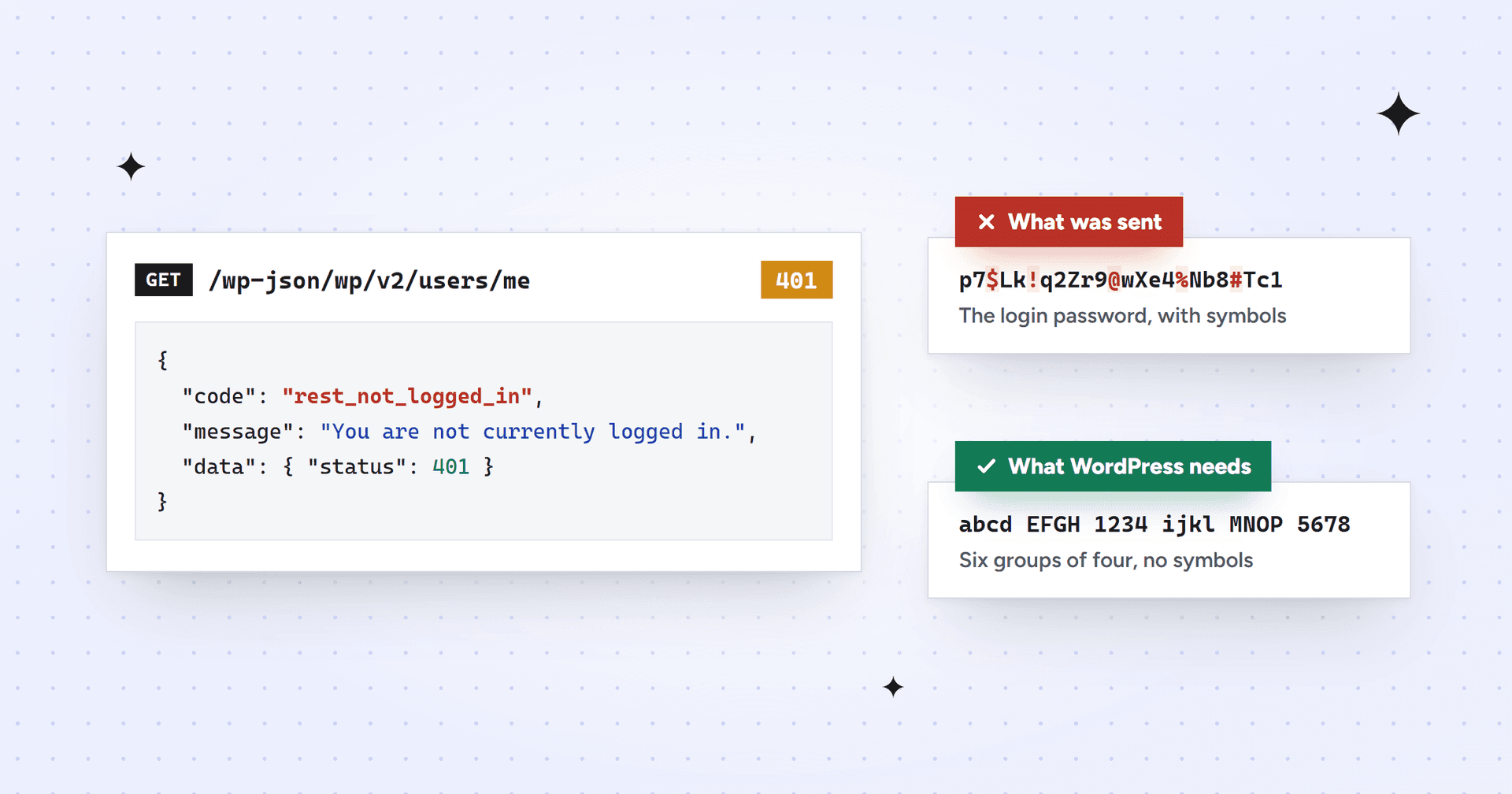
Illustration: WordPress shows a new application password once, in six groups of four.
This is where we lost the most time. An application password is 24 letters and numbers, shown in six groups of four. It isn't the user's login password, which WordPress also generates at 24 characters, but with symbols. We pasted the login password, and the 401 errors that followed looked exactly like a server fault. Our guide to 401 rest_not_logged_in covers how to tell the two apart.
No Application Passwords section at all? The site isn't on HTTPS, or a security plugin has switched the feature off. Wordfence switches it off by default; the same guide shows where the setting lives.
Test the login before you open Claude
One request tells you whether WordPress accepts the user and password, without Claude in the way. In a terminal, run this with your own username and domain:
curl asks for the password, then prints a reply. Details starting with "id" mean the login works. A 401 with "You are not currently logged in." (rest_not_logged_in) means it doesn't, so work through our rest_not_logged_in checklist before going further. On Windows, type curl.exe rather than curl.
Connect Claude Code
Claude Code can talk to MCP Adapter directly over HTTP, so this route needs no Node.js. First, turn the username and application password into one base64-encoded line. On a Mac or Linux:
claude mcp add --transport http --scope user wordpress https://example.com/wp-json/mcp/mcp-adapter-default-server --header "Authorization: Basic PASTE_THE_BASE64_HERE"
--scope user makes the site available in every project, and Claude Code saves it in ~/.claude.json. Both commands leave the password in your terminal history, so clear it afterwards on a shared computer.
We used the helper package instead, which also works if you have Node.js installed. Note that --transport sits between the last --env and the server name, so Claude Code doesn't read the name as another variable:
On Windows, if that server fails to start with a spawn error such as ENOENT or EINVAL, replace npx with cmd /c npx, the workaround reported in Claude Code's issue tracker. And if your terminal says claude isn't recognized, the Claude desktop app is the likely reason: it runs its own copy of Claude Code and doesn't add the command. Our fix covers installing it, or adding the server without it.
Or connect Claude Desktop
Claude Desktop reads its MCP servers from a JSON file. Open Settings > Developer > Edit Config, add this entry with your own values, save, then quit Claude completely and reopen it (MCP docs):
The file is %APPDATA%\Claude\claude_desktop_config.json on Windows and ~/Library/Application Support/Claude/claude_desktop_config.json on a Mac. mcp-wordpress-remote is a small helper from Automattic that runs on your computer and passes Claude's requests to your site. Claude Code doesn't read this file, so set each app up separately.
Check what Claude can see
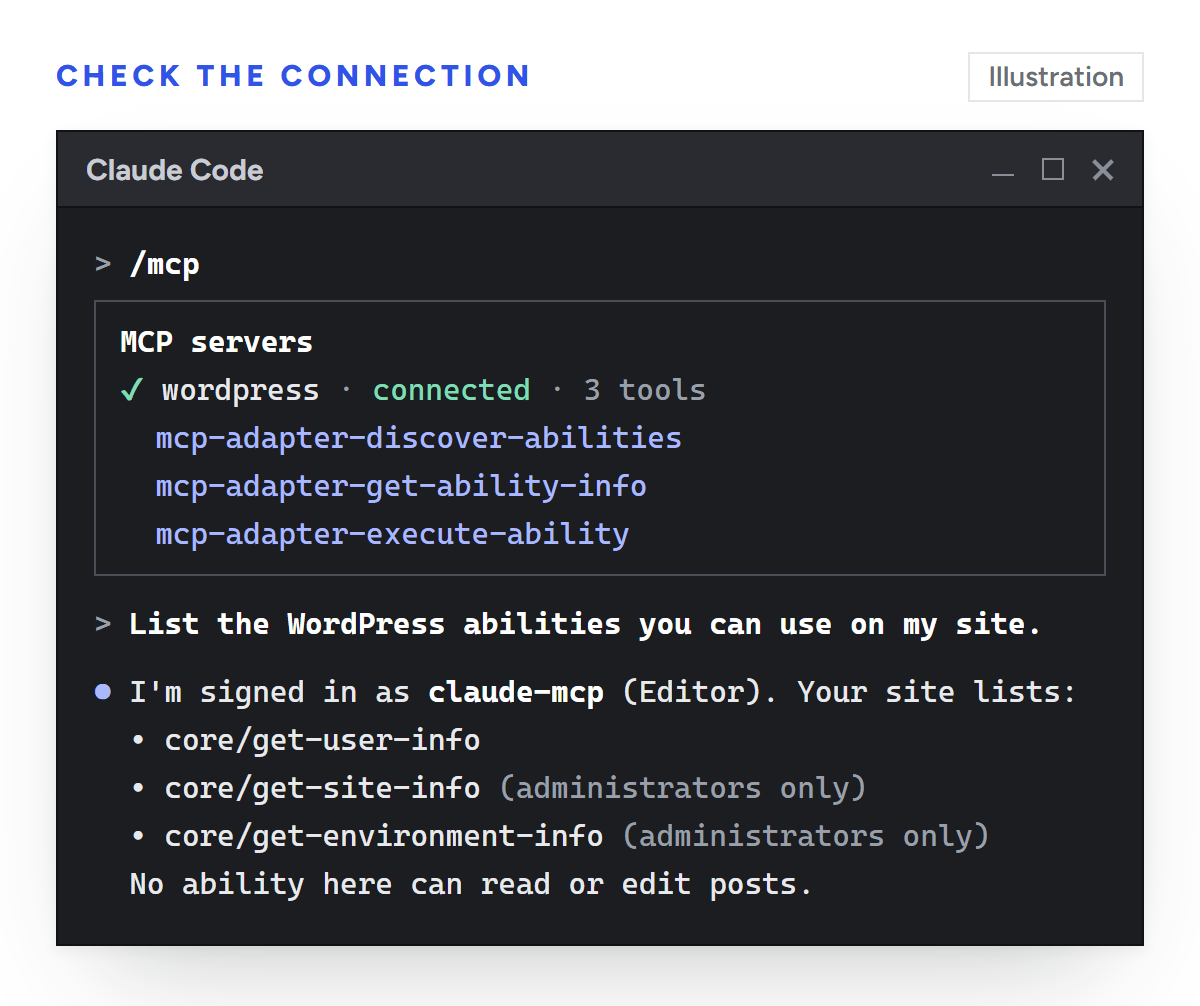
Start a new session, because Claude Code loads MCP servers when a session starts, and ask: "List the WordPress abilities you can use on my site." In Claude Code, the /mcp command shows whether the server connected.
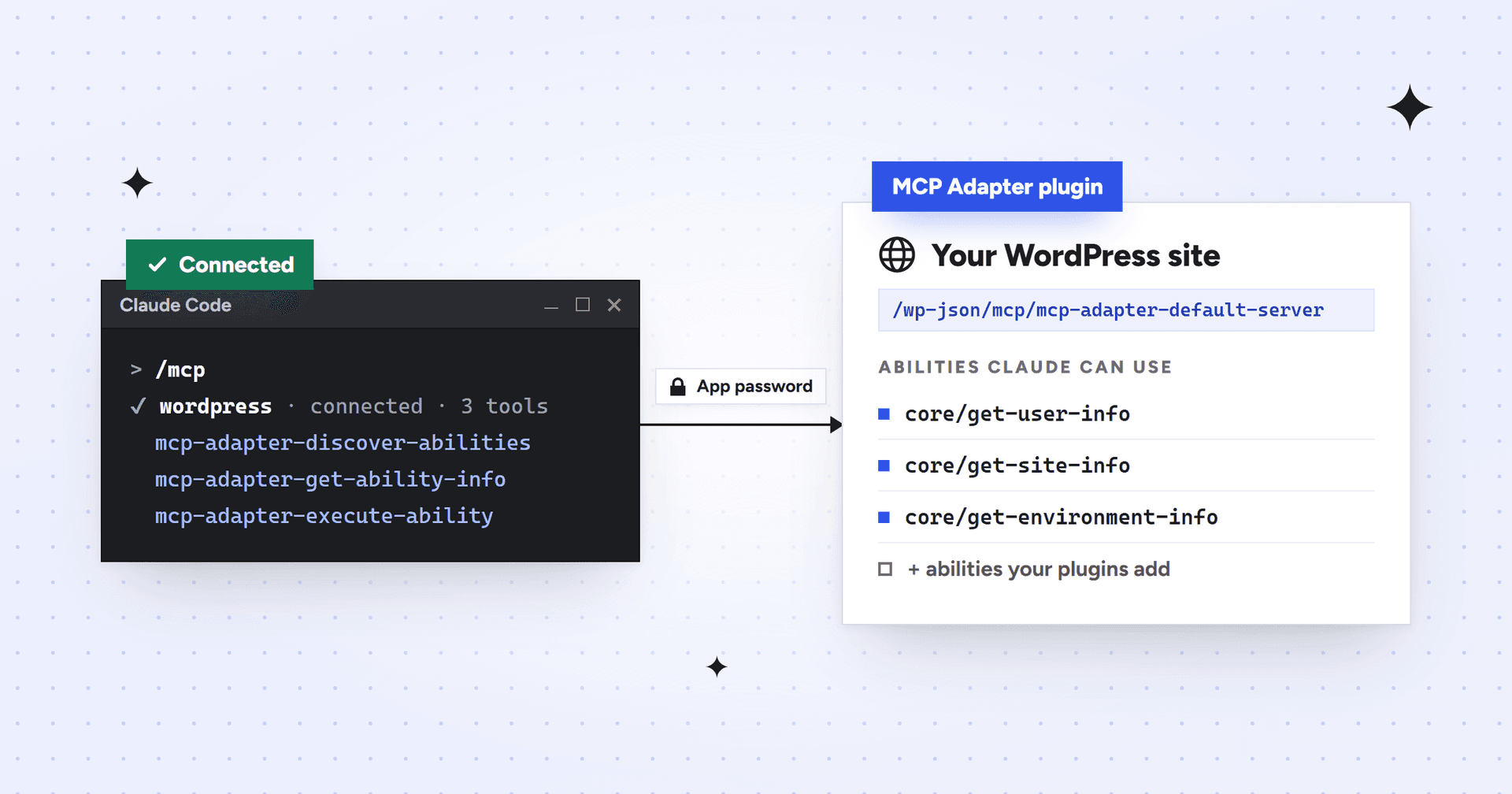
A working connection shows three tools from MCP Adapter: mcp-adapter-discover-abilities, mcp-adapter-get-ability-info and mcp-adapter-execute-ability. Claude uses them to list your site's public abilities, read one and run it. An empty or short list still means the connection works.
Illustration: on WordPress 7.1, a working connection shows three tools and the core abilities.
What Claude can do once it's connected
MCP Adapter adds no features of its own. Each thing Claude can do is an ability that WordPress or a plugin registers and marks as public, and your plugins decide which abilities exist. WordPress itself ships three, all read-only, and WordPress 7.1 made them public by default:
Ability
What it returns
Who can run it
core/get-site-info
Site title, tagline, addresses, admin email, language and WordPress version
Administrators only
core/get-user-info
The connected user's profile, including its roles
Any logged-in user
core/get-environment-info
Environment type, PHP and database versions, WordPress version
Administrators only
No released version of WordPress has an ability that lists, reads, creates or updates posts. The development version of WordPress 7.2 adds a read-only content query, and abilities that change content have only been proposed so far. Unless your plugins add abilities, a fresh connection can confirm who it's logged in as and little else. On our client's site, Yoast SEO, WP Rocket and Imagify had registered 24 abilities between them, from updating a post's Yoast title and description to clearing the cache, but none could change a post's content.
For content work today you have three options:
Use a plugin that registers content abilities. Enable Abilities for MCP, for example, is a free WordPress.org plugin with more than 5,000 active installs that adds content abilities, such as creating pages and creating or updating posts, each of which you switch on or off. We haven't tested it on a client site yet, so check first whether plugins you already run support the Abilities API.
Use WordPress.com's connector through Jetpack, if the site already pays for Jetpack AI or Jetpack Complete.
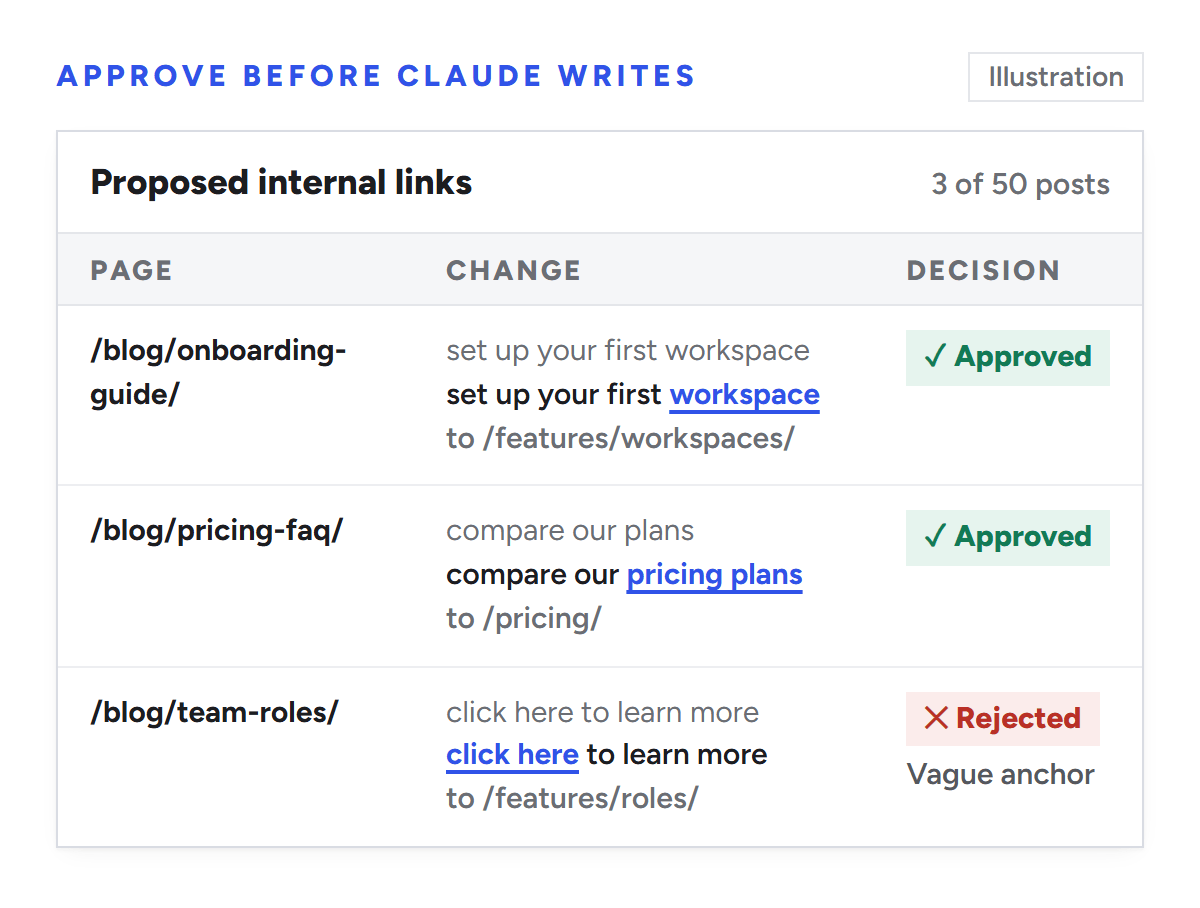
Have Claude Code work through the REST API with the same application password, which the login test has already proved. This is the plan we set for the client's internal linking job: Claude reads the posts through the API, proposes every change in a table we approve, then writes only the approved edits.
Make site-wide changes safely
An ability or API call changes the live site exactly as a click in wp-admin would. The safeguards are the ones you'd want for any bulk edit:
Take a backup first. Most managed hosts, WP Engine included, offer one-click backup points.
Try the change on staging before production. If the staging site sits behind a server password, application passwords won't work there; WordPress shows "Your website appears to use Basic Authentication, which is not currently compatible with Application Passwords."
Review every change before it's written. Ask Claude for a table with the page, the current text and the new text, and approve it row by row.
Publish new pages before linking to them. A link added to fifty posts that points at an unpublished draft is fifty broken links.
Clear your cache afterwards, so visitors and search engines see the updated pages.
Revoke the application password when the job is done, and keep one password per app and device so you can cut off one at a time.
Illustration: Claude proposes each change, and a person approves or rejects it before anything is written.
Internal links are part of Mission SEO's technical SEO work, and they suit this setup well: finding the right sentence in fifty posts is slow by hand and quick for Claude, while the approval table keeps a person in charge of every edit.
Common setup errors and fixes
What you see
Cause
Fix
401 "You are not currently logged in." when you test the login
The login password was used instead of an application password, or application passwords are off
Run the login test, then connect one Claude app and ask it to list your site's abilities.
Decide how Claude will reach your content: a plugin with abilities, WordPress.com's connector or the REST API.
Run your first bulk change on staging, with an approval table.
If you'd rather have someone plan and make the changes, Mission SEO's technical SEO team works inside your stack, from internal links to structured data. Start with a technical audit.
Frequently asked questions
Is the WordPress MCP plugin free?
Yes. MCP Adapter is free in the WordPress.org plugin directory and has no paid tier. You may pay elsewhere: Claude's apps need a Claude account, and WordPress.com's own connector needs a paid WordPress.com plan, a free site in its first 30 days, or Jetpack AI or Jetpack Complete for a self-hosted site.
Does WordPress MCP work with WordPress.com sites?
Yes, through WordPress.com's own MCP server rather than MCP Adapter. Turn on MCP access in your WordPress.com account settings, then add the WordPress.com connector from Claude's connector directory. It covers posts, stats and settings, and it asks you to confirm before changing content. It works on paid plans and on free sites for their first 30 days.
Can Claude publish posts through the WordPress MCP plugin?
Not with MCP Adapter alone on WordPress 7.1. The plugin only passes along abilities that WordPress or other plugins register, and WordPress core has no ability that creates or edits posts yet. A plugin that registers content abilities, WordPress.com's connector, or the REST API with the same application password can all do it.
Is it safe to connect Claude to WordPress?
It's as safe as the account you connect. Claude acts with that user's role, so an Editor can't touch plugins, settings or other users. Use a dedicated account and one application password per app, keep backups, test bulk changes on staging, and revoke the password as soon as you stop using it.
What happened to Automattic's WordPress MCP plugin?
Automattic archived its WordPress MCP plugin on GitHub in September 2026 and now points people to MCP Adapter, the official plugin from WordPress.org. Tutorials written for the old plugin, including those that use JWT tokens or a plugin settings screen, no longer match how the current setup works.
Sources
We checked every source below on October 20, 2026, against WordPress 7.1.3, MCP Adapter 0.7.1 and Claude Code 2.1.304. This area changes monthly, so check the plugin's changelog if a step doesn't match what you see.
We’re a B2B SEO and AEO agency. Book a free 30-minute call with a senior consultant: we look at your site before we talk, so you leave knowing what to fix first.


 best project management software